

- Stock: Out of Stock
- Model: UCAN-Fysetc

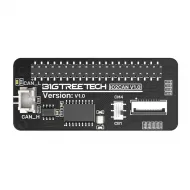
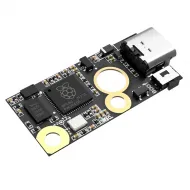
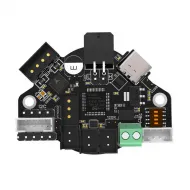
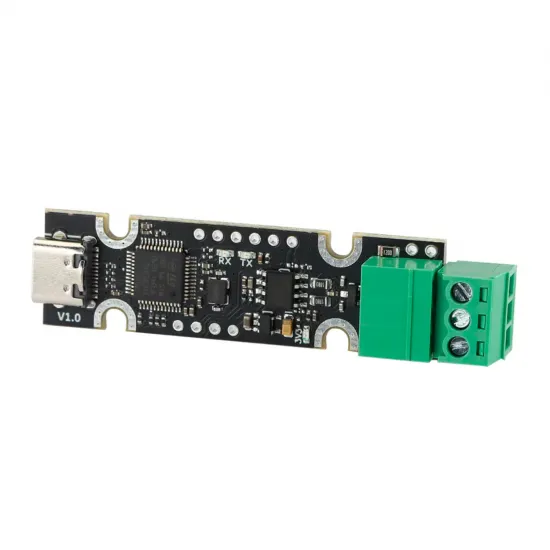
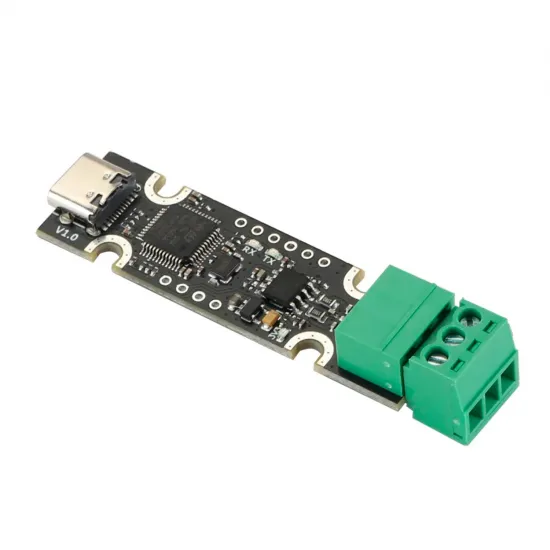
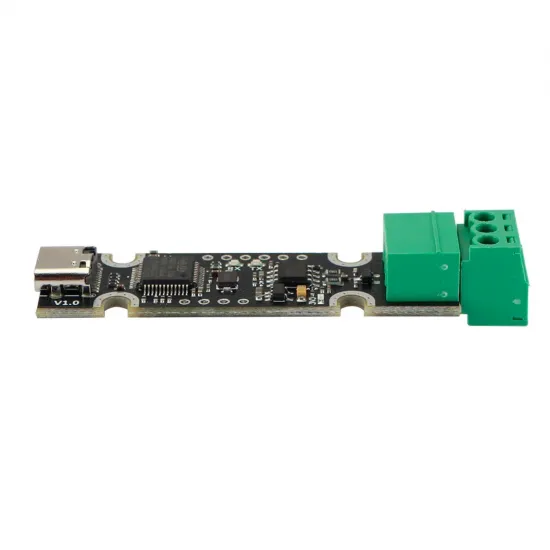
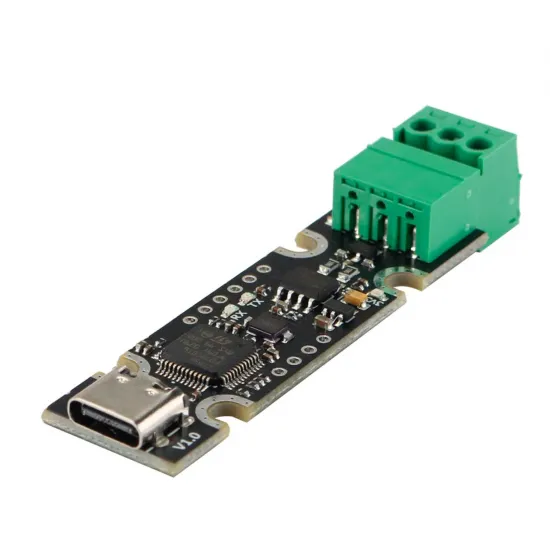
The FYSETC UCAN V1.0 connects a host computer over USB-C to a CAN bus used by compatible toolhead boards and other modules. It is based on an STM32F072 and has a pluggable terminal for CAN_H, CAN_L and GND. In a Klipper installation, it provides host communication with CAN nodes; it does not replace the printer's main board or directly control motors and heaters.
Connections and purpose
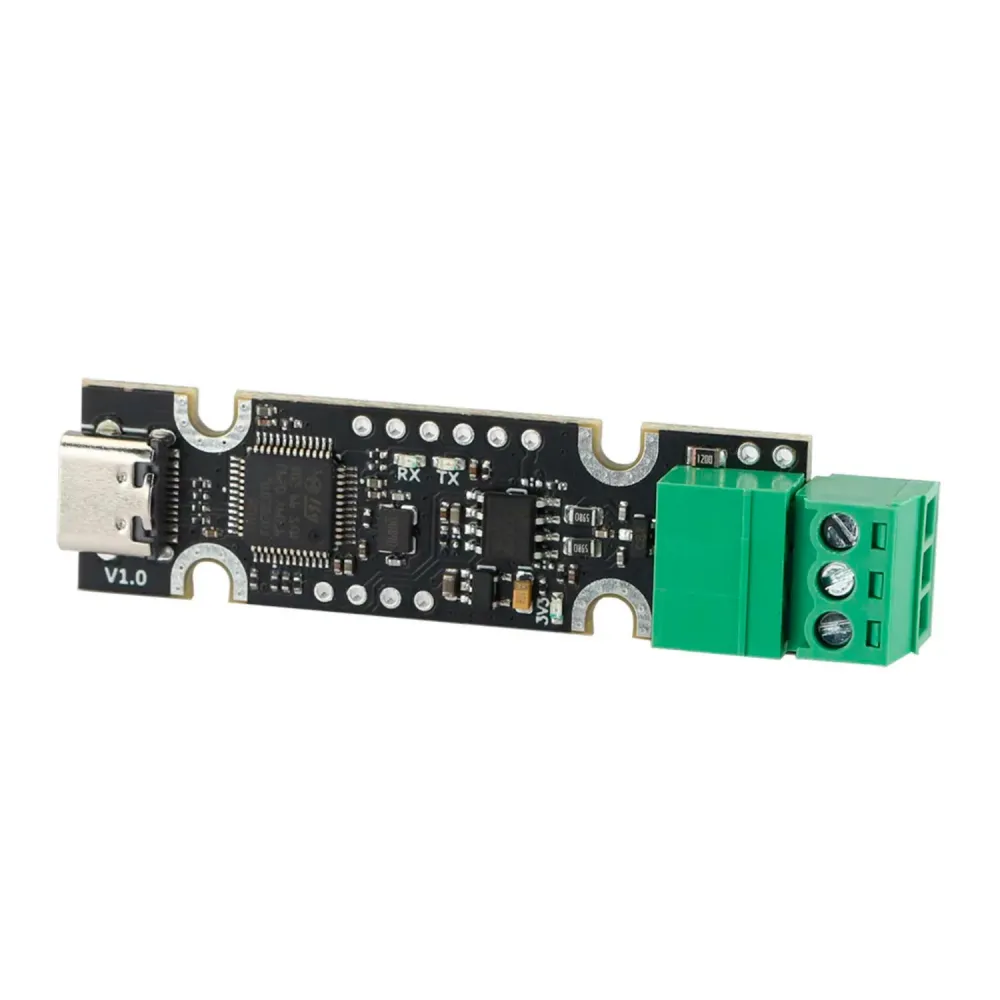
- USB-C: connection to the host and 5 V USB power for the adapter itself.
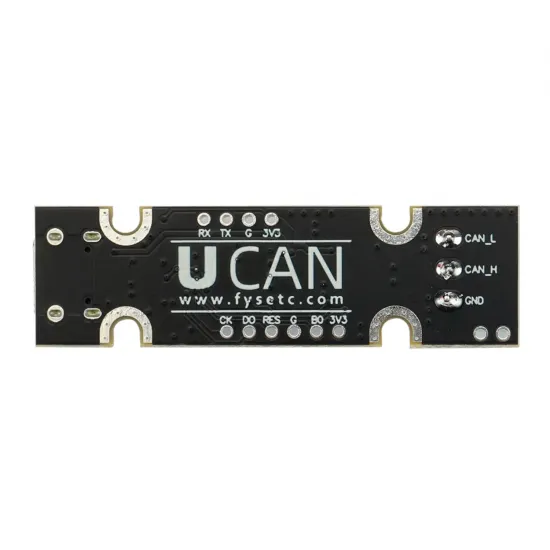
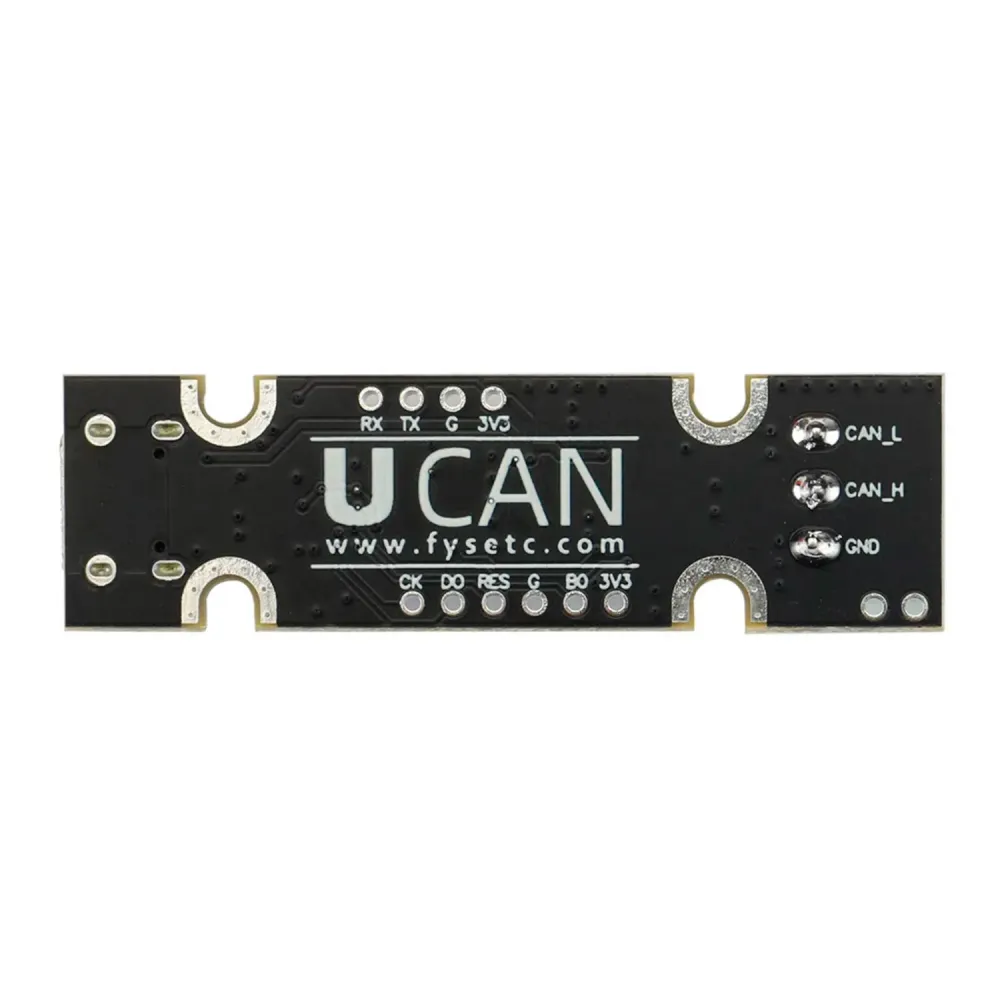
- Three-way terminal: CAN_H, CAN_L and GND, labelled on the rear of the board. Read the marking before wiring rather than relying on the apparent terminal position.
- Bus: CAN 2.0A/B, up to 1 Mbit/s according to FYSETC. All devices must use a compatible CAN bit rate.
- Termination: the V1.0 includes termination resistors in FYSETC's schematic. A complete installation needs termination at each bus end; verify the actual arrangement before use.
The terminal does not provide 12 or 24 V power to a remote board. A toolboard needs its own suitable supply and ground, CAN_H and CAN_L wiring according to its schematic. This is neither a CAN-FD adapter nor a documented galvanically isolated interface.
Firmware determines the USB interface
USB behaviour depends on the firmware installed on the UCAN. With compatible candleLight firmware, Linux uses SocketCAN through the gs_usb driver and may expose an interface such as can0; this is a common Klipper route. With SLCAN/CANable-style firmware, it may appear as a USB serial port and needs different host configuration. The hardware supports other suitable projects, but do not flash a procedure or binary for another board just because its STM32 chip looks similar.
Before updating firmware, identify how your unit enumerates, its hardware revision and a firmware target confirmed for it. A UCAN running candleLight as a host adapter is not added to printer.cfg as if it were the toolhead MCU; the canbus_uuid belongs to the CAN node you want to control. Only a setup explicitly built as a Klipper bridge treats the bridge as an additional node.
Klipper setup
- Connect the UCAN to the Linux host over USB and check the detected firmware and interface. Configure SocketCAN for that firmware. Klipper gives
can0,bitrate 1000000andtxqueuelen 128as an example, but all nodes need matching bus speed and the network setup method depends on the Linux distribution. - With power disconnected, wire CAN_H to CAN_H, CAN_L to CAN_L and GND according to both boards' schematics. Use a twisted pair for H/L and secure connectors against printhead movement. Power the remote board separately at its specified voltage.
- Check for two terminations of approximately 120 Ω, one at each bus end. With the complete system powered off, a measurement near 60 Ω between CAN_H and CAN_L is a useful overall check. This UCAN's documentation describes built-in termination; do not assume moving a jumper disables it without checking the physical unit and measured result.
- Build and install suitable CAN firmware on the toolboard. Use
canbus_query.pyto identify its UUID only while commissioning a node not previously initialised, then add that UUID to the corresponding Klipper MCU section. Do not use that query as a ping or while printing. - Before printing, confirm stable communication and test the remote board's temperature readings, motors, fans and probes. If CAN errors occur, inspect terminations, plugs, power and host logs before increasing speeds or changing settings at random.
The FYSETC technical repository on GitHub contains the V1.0 schematic and component drawing. Klipper's CAN guide covers host setup, bus termination and node identification.
Compatibility and adapter choice
It can be part of a Voron 2.4, Voron Trident or another printer with Klipper, a Linux host and a CAN toolboard, provided firmware, power, bus speed, wiring and connectors match. This is communication compatibility, not automatic mounting or electrical power delivery. For example, our EBB36 CAN with MAX31865 can be a node in such a system, but needs its own wiring and configuration. If you want another USB-CAN interface from our catalogue, see the BIGTREETECH U2C V2.1 and compare connections and firmware before choosing.
It is right for you if you want to add CAN to a Klipper host and can configure firmware, SocketCAN and wiring. It is not right for you if you need a main controller, 24 V toolhead power from the adapter, installation without setup or a CAN-FD converter.
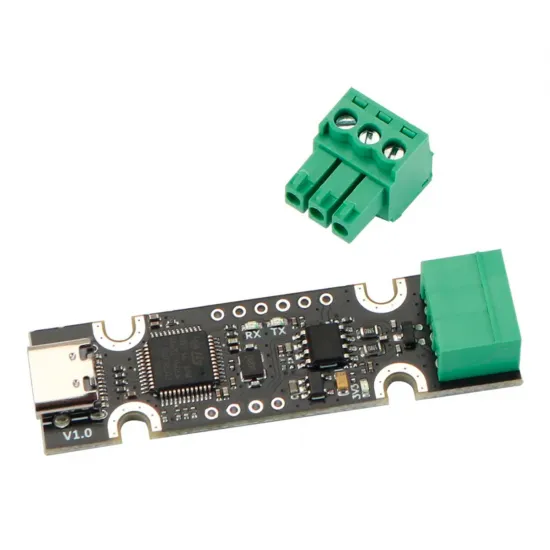
In the package: FYSETC UCAN V1.0 adapter with a pluggable three-way terminal. Prepare the USB cable, toolboard power supply and other CAN-bus parts for your installation.