Your printer starts clicking, less and less material comes out, and the filament has a chewed section when you remove it. Tightening the extruder or increasing the temperature can seem like an obvious fix. But that noise does not point to a single fault: there may be too much resistance before the extruder, inside the hotend or even at the nozzle outlet.
To troubleshoot an FDM 3D printing jam, first identify when the problem begins, then change one thing at a time. This guide helps you choose what to check first, which settings are worth adjusting and when cleaning or replacing a part makes sense.
Stop the print if the extruder keeps grinding the filament. Let the printer cool down with the hotend cooling operating as required by its normal procedure. Before dismantling parts or working on connections, switch the machine off and follow the manufacturer's instructions. Use your hotend's specific procedure for heated unloading, purging or cleaning.
1. Your first clue: when does extrusion stop?
Make a note of what happens just before the failure. A print that cannot finish its first layer needs different checks from one that runs well for half an hour. Use the table below to choose a starting point; these are clues, not confirmed diagnoses.
| When it fails | What to check first |
|---|---|
| From the first layer | Nozzle-to-bed distance, material profile, filament feeding and any existing blockage. |
| After printing well for a while | Heatsink cooling, enclosure conditions and changes in spool resistance. |
| In fast sections or with wide lines | Volumetric flow demand and a suitable temperature for the filament. |
| After many travel moves | Retraction and the filament path. Do not increase retraction as a guess. |
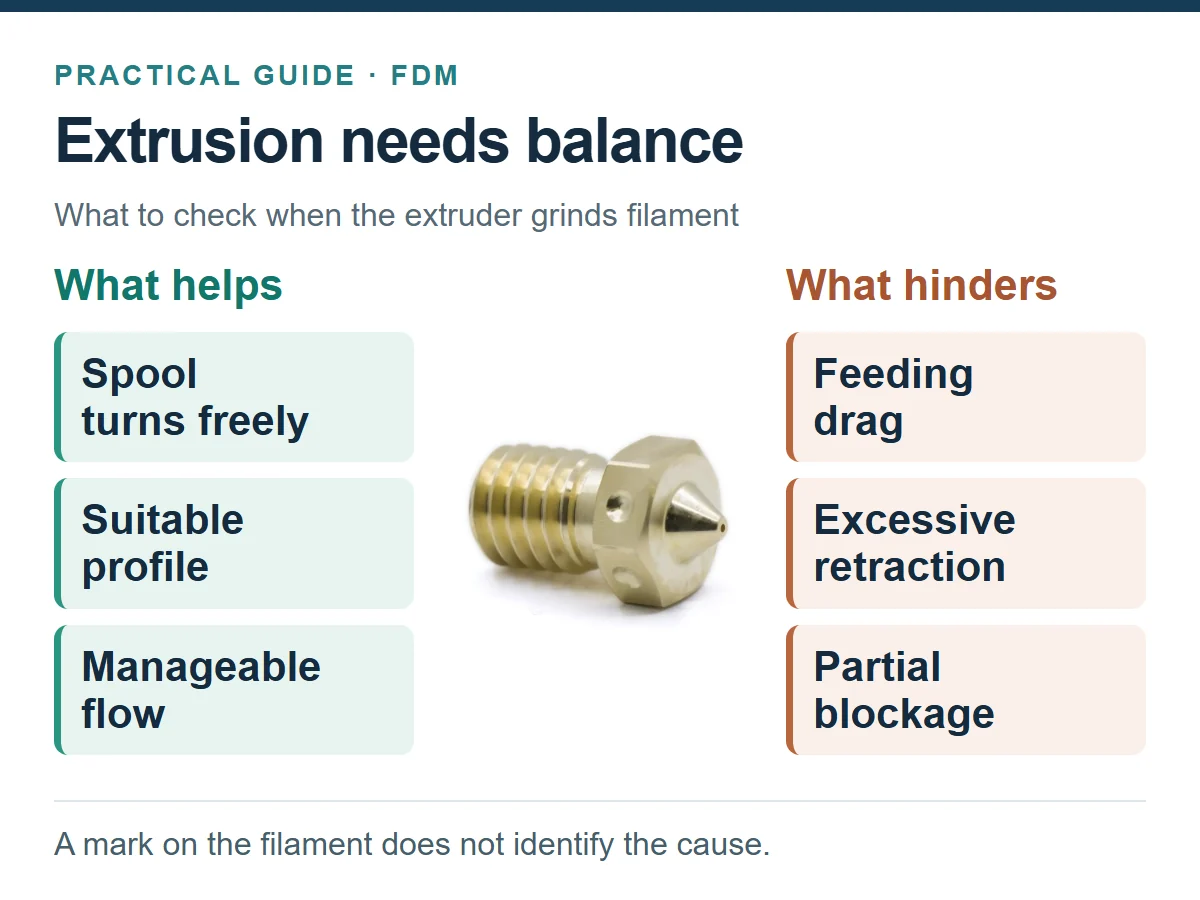
Chewed filament shows that feeding has failed; it does not identify the cause on its own.
2. Start with the filament path
Before removing the nozzle, check whether the spool turns freely, whether the filament is trapped under another turn or whether it rubs against a guide. Check the tubes too: tight bends, deformed ends or a fitting that lets the tube move can make feeding harder.
If the problem only occurs on the first layer, check the nozzle-to-bed distance. Too little clearance restricts material leaving the nozzle. Adjust the first layer using your printer's procedure; do not try to compensate by tightening the extruder.
Once the equipment is ready for inspection, remove filament debris from the drive gears. Set their pressure according to the extruder instructions: both too little and too much pressure can affect feeding. Flexible materials need particular care with this adjustment and with filament guidance.
If you find a damaged tube, replace it with the right specification for the assembly. For example, this PTFE tube with a 2 mm inner and 4 mm outer diameter is used with 1.75 mm filament in compatible setups. Check the dimensions and the tube's role in your printer; its presence does not make a hotend suitable for every temperature.
3. Separate hotend cooling from part cooling
The fan that cools the hotend heatsink and the fan that blows air onto the print have different jobs. Increasing part cooling does not necessarily solve a problem in the hotend's cold section.
If heat travels further upwards than intended and softens the filament before it reaches the melt zone, a heat creep jam can develop. It is one possibility worth checking when a failure appears after some time, especially with PLA in a warm enclosure; the timing alone does not confirm it.
Check that the heatsink fan works, its fins are clean and the duct directs air where it should. If the problem started after closing the enclosure, review the recommended conditions for the material. Maintain the cooling behaviour specified for your machine during cooldown as well.
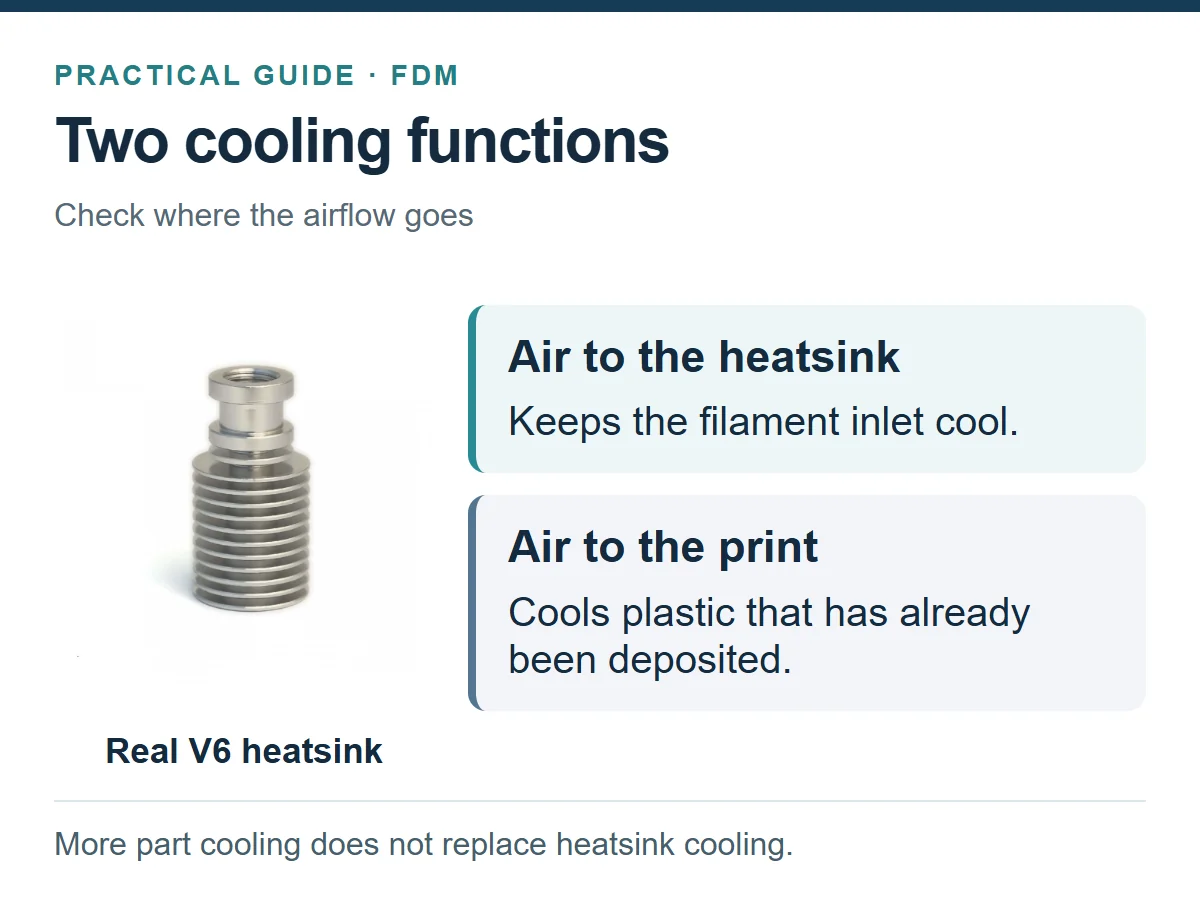
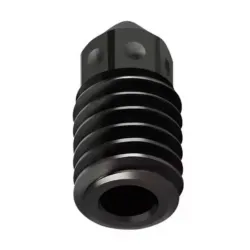
A real V6 heatsink from the catalogue. The cooling function depends on the assembly and where the air goes.
4. Check how much flow you are asking for
If the extruder skips during fast infill or with taller layers, you may be asking the hotend to melt more plastic than that combination of filament, nozzle and temperature can handle. A complete blockage is not required for under-extrusion to occur.
To understand the demand, use the estimate flow ≈ line width × layer height × speed. A 0.45 mm line, a 0.20 mm layer and 60 mm/s give approximately 5.4 mm³/s. At 120 mm/s, with the other dimensions unchanged, the demand becomes 10.8 mm³/s.
This is an illustrative calculation; the slicer calculates the actual extrusion geometry. Use its flow preview to find demanding sections. The example values are not your hotend's maximum capacity.
As a first test, reduce extrusion demand. Also check temperature within the filament's recommended range and the printer's limits; raising it without checking the other factors can create further problems. Once feeding is stable, calibrate maximum flow for that combination and leave a margin for reliable printing.
See how volumetric flow demand changes
Move the sliders and compare your selection with the article’s example. Change one variable at a time to see its effect.
Fixed reference: 60 mm/s, a 0.45 mm line and a 0.20 mm layer. Line width is the configured extrusion width, not the nozzle diameter.
Estimated flow: 9.00 mm³/s. 66.7% more than the initial example · ×1.67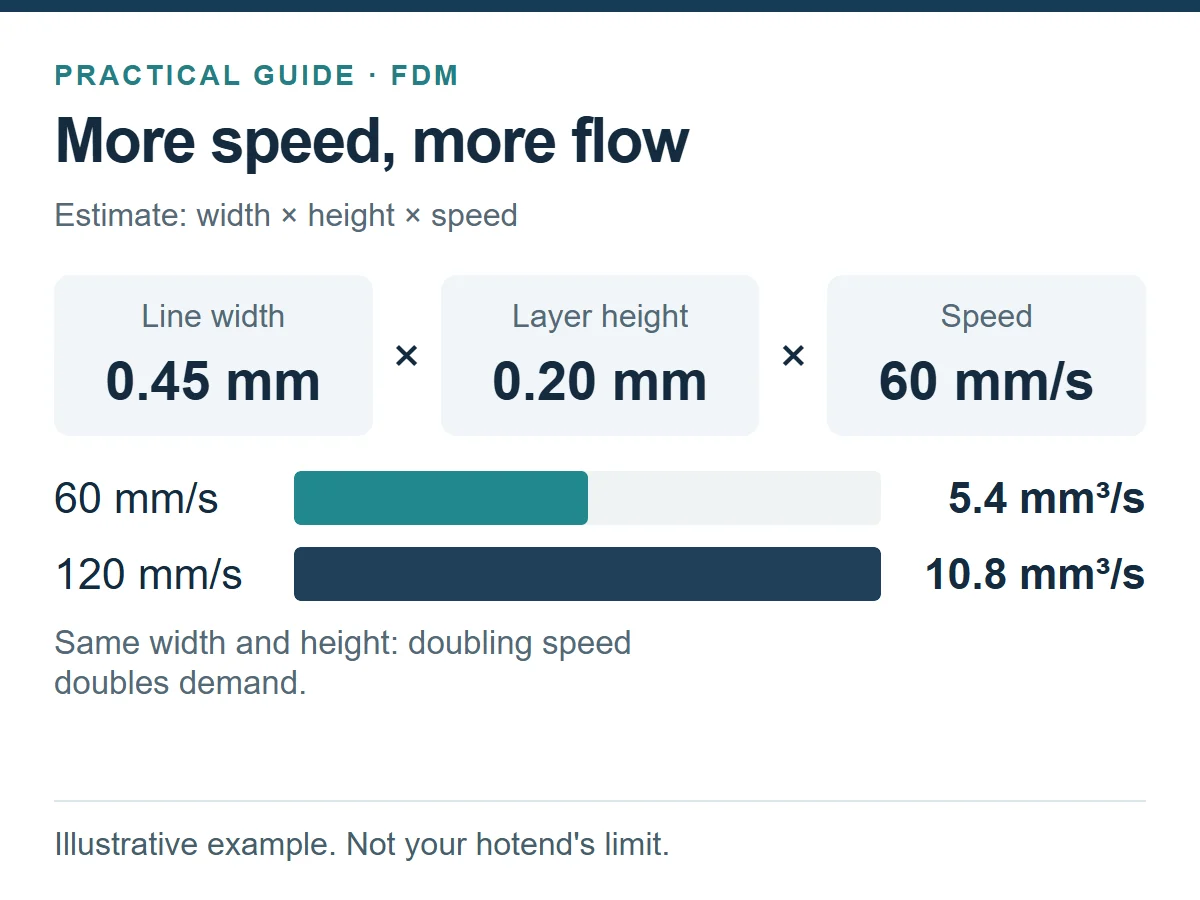
Wider lines and taller layers also increase volumetric flow demand.
Educational estimate: width × height × speed. The flow in the sliced file may differ. Slider ranges are not recommended settings and do not indicate your hotend’s maximum capacity; not every combination can be printed with the same setup.
How to calibrate maximum volumetric flow in OrcaSlicer
Run this test once the jam has been resolved and feeding is stable. Select your printer, nozzle and filament with temperature already adjusted. The result applies to that combination.
- Open Calibration → Max Volumetric Speed. The wording may vary with language or version. This test progressively increases material demand.
- Set start, end and step. The official guide suggests 5–20 mm³/s with a 0.5 step as a starting point. Adapt the range to your setup; it is not a guaranteed capacity. Slice and print the test.
- Find the last clean section before defects. Stop the test if sustained skipping or filament grinding occurs. Select Flow in Preview, move to that height and read the flow for the corresponding toolpath.
- Save a limit with a margin in the filament profile. OrcaSlicer recommends reducing the result by 10–20%, or more if needed. A measured 12 mm³/s gives 9.6–10.8 mm³/s as an initial working range; this does not guarantee stability in every part.
- Validate it with a representative print. Include areas with retractions. If the entire test is clean, you have checked the tested range, rather than found its limit. Afterwards, create a new project to leave calibration mode.
Two different settings: maximum volumetric flow, in mm³/s, limits demand. Flow ratio or extrusion multiplier adjusts the amount extruded. Lowering the latter to conceal missing material can make the result worse.
Procedure adapted from the official OrcaSlicer guide. Check names and options against your version.
5. Adjust retraction from a reliable starting point
Retraction pulls the filament back slightly to limit oozing during travel moves. Excessive distance can draw hot material towards a section where it should not soften and contribute to feeding problems.
Start with the recommended profile for your extruder and hotend. A value that works in a Bowden system may be excessive in a direct drive setup, and two direct drive extruders do not necessarily need the same distance either.
If failures coincide with frequent retractions, check that you have not carried over a profile from another printer. Adjust one setting at a time using a short test. Aim for a balance between stringing and stable feeding; do not chase a complete absence of strings at the expense of reliable extrusion.
6. When to clean the nozzle and when to replace it
If the external feed path is working properly and the problem persists at moderate demand, check for a partial blockage. Residue from a previous material, dirt or degraded polymer can restrict the passage. Some plastic still coming out does not rule this out.
Use the cleaning procedure for your hotend. A cold pull can help when the manufacturer supports it and specifies the material and temperatures to use. Do not force cold filament out or use drills or tools that could change the nozzle bore. Nozzle removal and tightening also depend on the system.
For fibres or other abrasive fillers, check the filament data sheet for the required nozzle material and, where specified, its minimum diameter. A 0.6 mm nozzle is not a universal answer for every filled filament. Abrasive wear and a blockage are different problems.
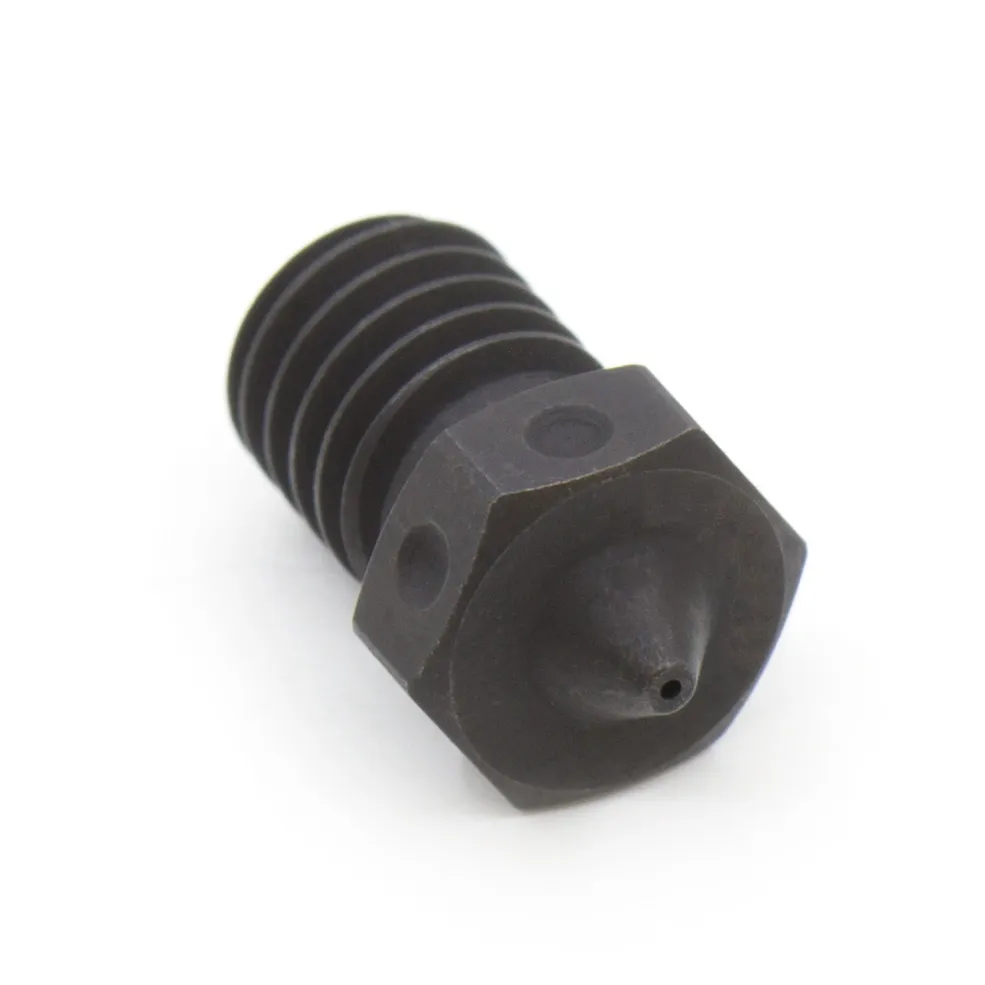
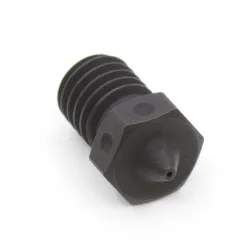
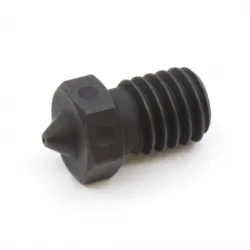
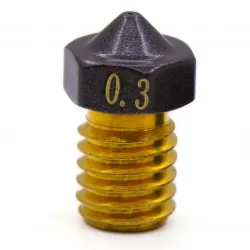
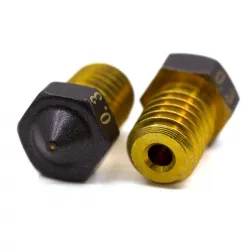
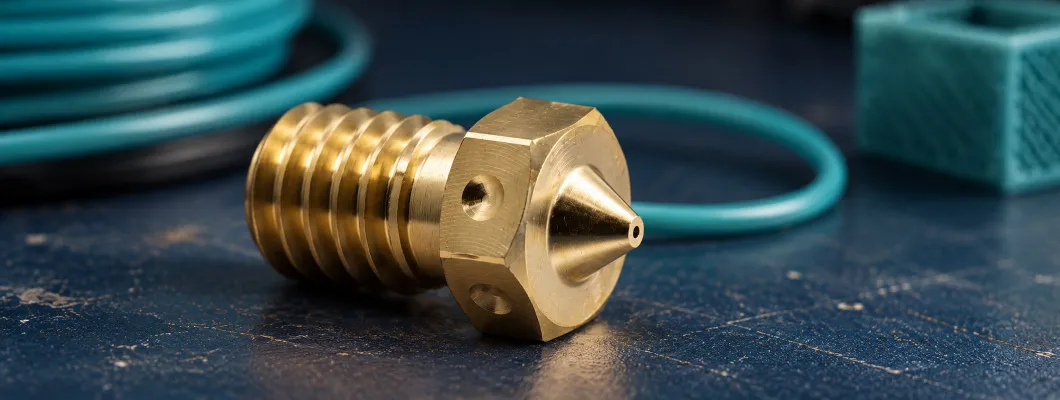
A real hardened nozzle. Material, diameter and mounting geometry must suit the application.
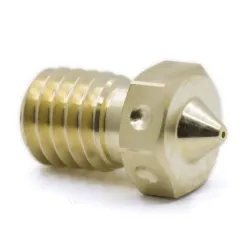
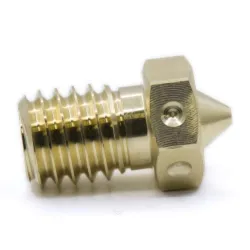
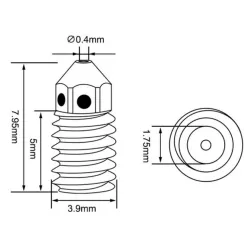
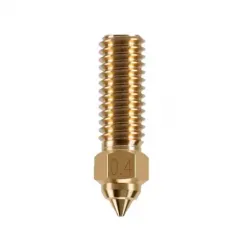
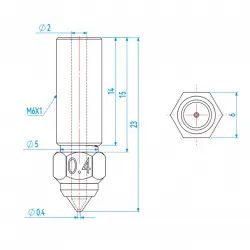
Before replacing it, check the exact hotend and nozzle geometry as well as the outlet diameter. The catalogue includes the Trianglelab V6 brass 0.4 mm nozzle and the Trianglelab V6 A2 hardened steel 0.5 mm nozzle. These are specific parts for assemblies compatible with that format; choose according to your printer and filament. Do not replace a part solely because it looks similar to the original.
7. Before restarting a long print
Start with a short test. After correcting the cause, unload the filament using the printer's procedure and remove the chewed section before loading it again. Check the drive gears for remaining debris. Perform a controlled purge and a short print with the corrected profile before repeating a job that will take several hours.
- The spool turns freely and the filament path does not cause feeding drag.
- The first layer lets material leave the nozzle properly.
- Heatsink cooling works as the manufacturer specifies.
- Temperature, retraction and flow match the assembly and the material.
- Feeding is stable and the extruder is no longer grinding the filament.
Record what you changed and when the problem stopped. If it returns, that information will help you continue troubleshooting.
Frequently asked questions about FDM jams
Does clicking mean the extruder is broken?
No. It may be trying to overcome excessive resistance. Check the path, nozzle and settings before deciding whether there is a mechanical fault.
Will increasing temperature always unclog the nozzle?
No. It may help if the material was being printed too cold, but it does not fix spool drag, poor cooling or a damaged part. Respect the filament and printer limits.
Should I buy a more powerful extruder?
Identify the cause first. More feeding force does not solve a blockage or thermal problem on its own. Changing an extruder requires checking the mounting, motor, electronics and configuration.
If the jam keeps returning, we can help you investigate
To make the most of HTA3D technical support and consultancy, prepare your printer and hotend models, filament and nozzle details, the profile used and when the failure occurs. A photo of the chewed filament and another of the assembly also help.
With those details, we can guide the inspection and assess which adjustment or replacement part makes sense for your case.
For more on calibration tests: volumetric flow calibration in the OrcaSlicer documentation.
Save the checklist for your next inspection
This sheet collects the troubleshooting sequence. Settings and procedures are explained in the sections above.
View or download the A4 PDF checklist Save A4 image
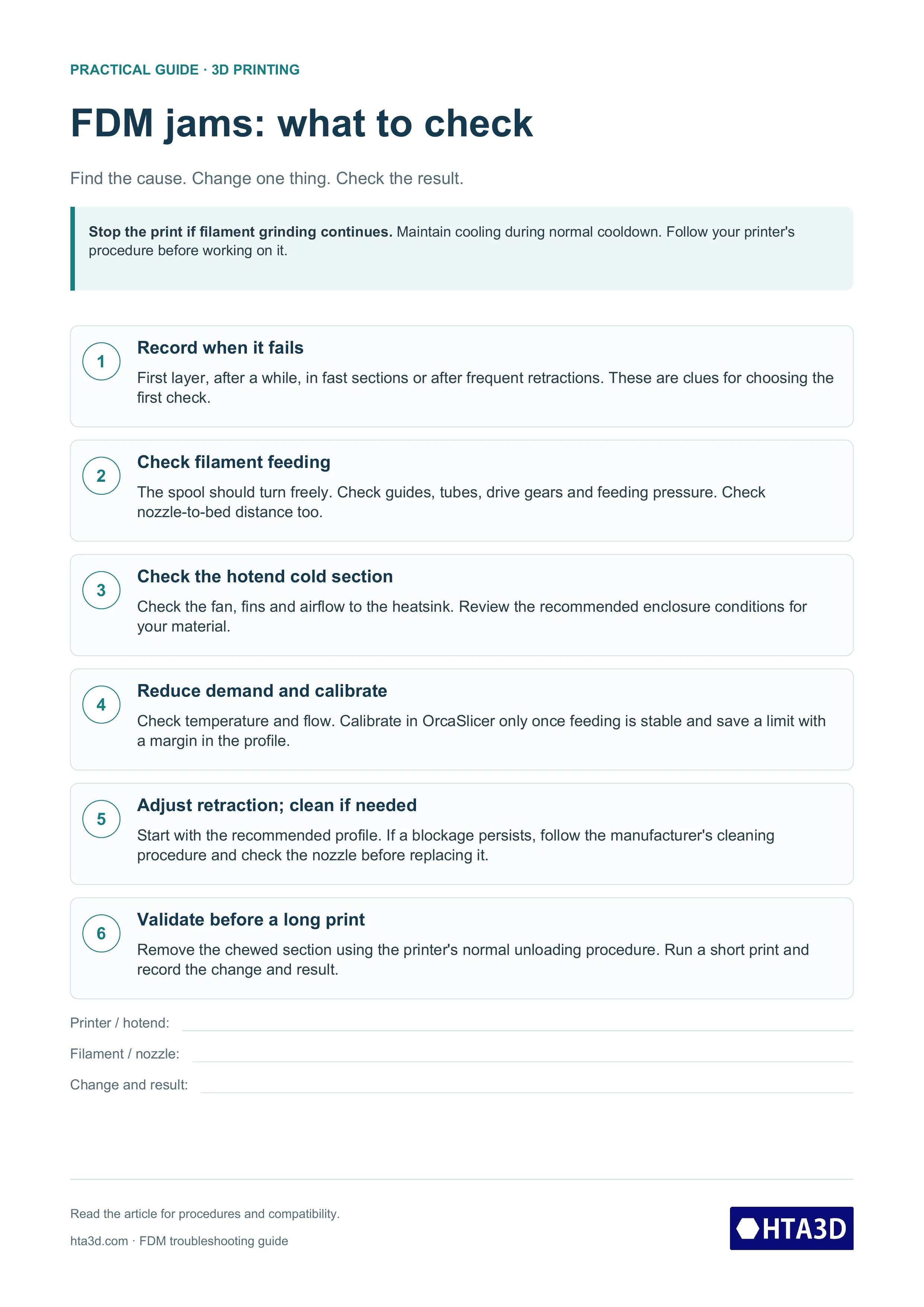
Select the image to view it at full size.
Text summary
- Record when it fails; that clue helps choose the first check.
- Check the spool, guides, drive gears and first layer.
- Check heatsink airflow and enclosure conditions.
- Reduce demand; calibrate flow only once feeding is stable.
- Use recommended retraction and the manufacturer's cleaning procedure.
- Remove the chewed section, run a short print and record the result.
Related Products