

- Stock: 4
- Model: TFT24-V1.1

Model:

TFT24 V1.1

TFT35 V3.0

TFT43 V3.0

TFT50 V3.0
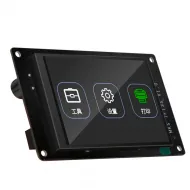
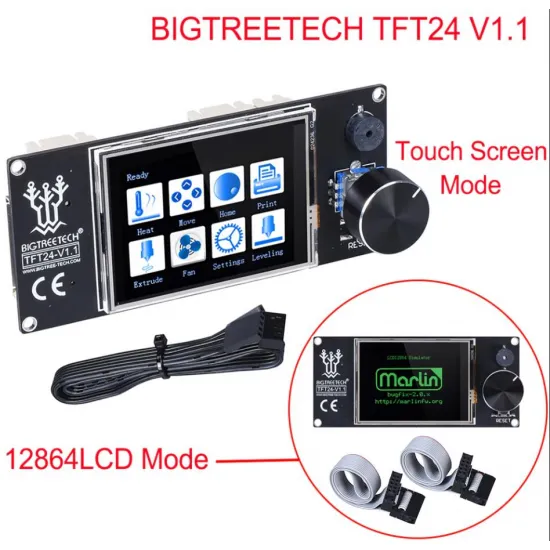
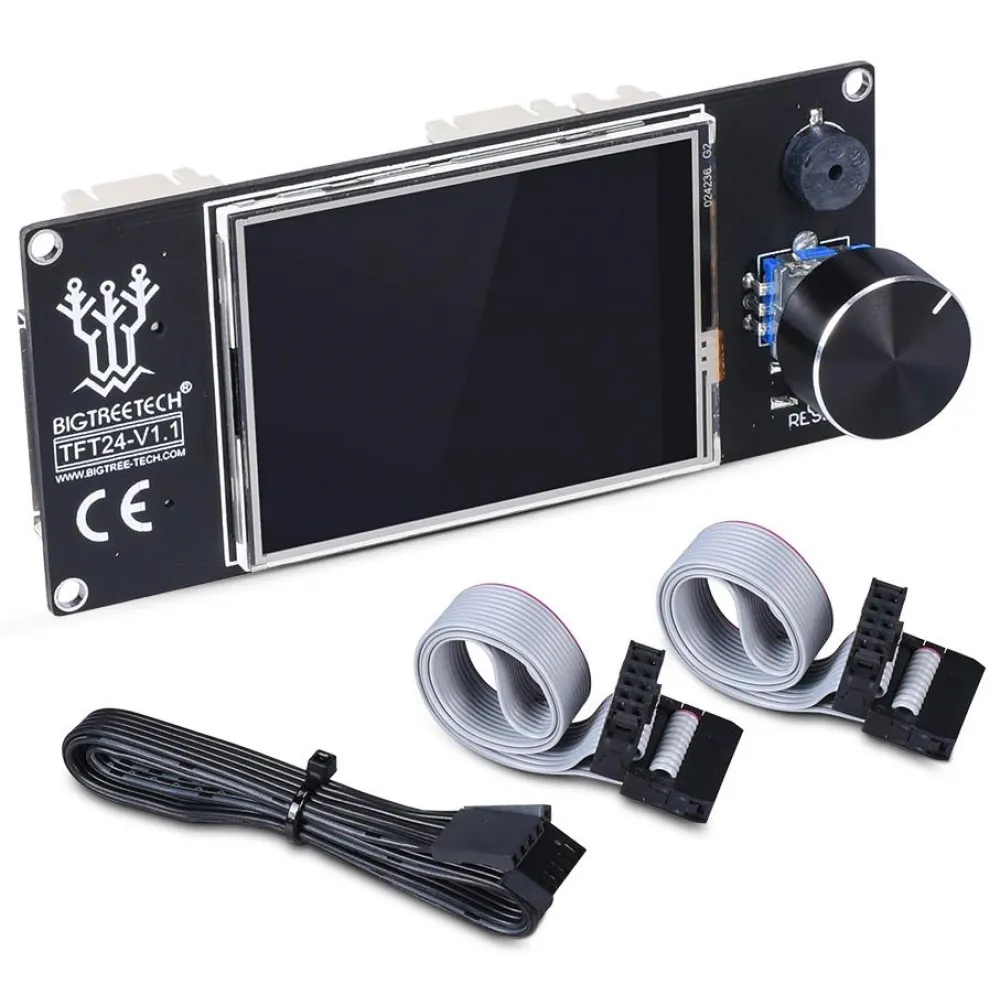
The BIGTREETECH TFT24 V1.1 combines two different ways of controlling a 3D printer in a compact 2.4-inch display: a standalone touchscreen interface communicating over a serial port and a 12864 LCD mode driven directly by the mainboard firmware. This dual interface lets you choose between fast graphical navigation and the functional compatibility of Marlin's classic menus.
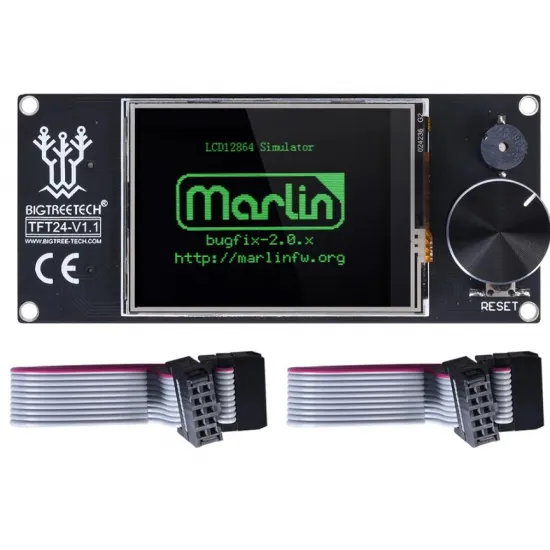
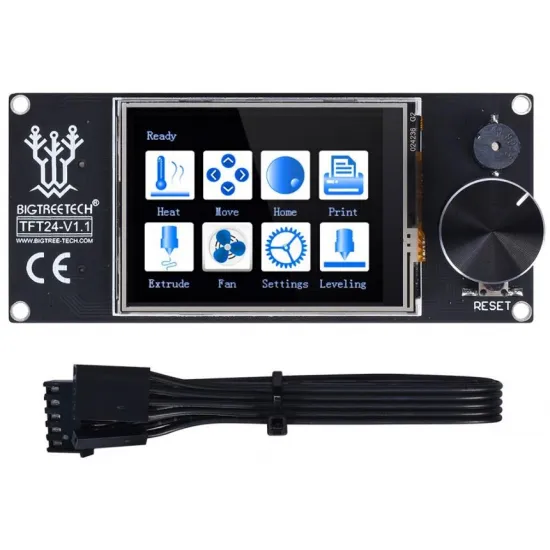
This is not a basic LCD or an HDMI screen: it has its own microcontroller and firmware. In Touch Mode it reads printer status and sends G-code commands over UART; in Marlin Mode it emulates a 12864 display through EXP1 and EXP2. If both interfaces are wired and configured correctly, you can switch modes by holding the touchscreen or encoder button for approximately 1.5 seconds.
Two interfaces in one display
| Mode | Connection | Operation |
|---|---|---|
| Touch Mode | 5-pin serial cable: RST, TX, RX, GND and +5 V | Independent touch interface that reads machine status and sends G-code commands over UART. |
| Marlin Mode / 12864 LCD | EXP1 and EXP2 | Menus generated by the mainboard firmware; controlled with the encoder without touch input. |
The two modes do not use the same link. A powered display does not confirm communication. Touch Mode needs a configured UART; Marlin Mode needs the EXP cables and the correct display option in firmware.
Main features
- 2.4-inch colour touchscreen.
- 320 × 240-pixel resolution.
- 5 V DC logic supply.
- Touch Mode over a UART serial link.
- 12864 graphical LCD emulation through EXP1 and EXP2.
- Rotary encoder with push button, buzzer and reset button.
- SD card reader and USB host port for functions supported by the TFT firmware.
- Firmware updates through an SD card.
- Configurable interface, icons, fonts, colours, language and serial speed.
Specifications and dimensions
| Model | BIGTREETECH TFT24 V1.1 |
|---|---|
| Diagonal | 2.4 inches |
| Resolution | 320 × 240 pixels |
| Input voltage | 5 V DC |
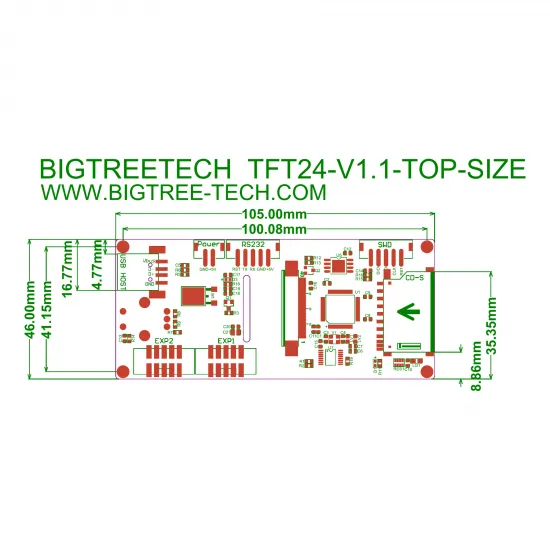
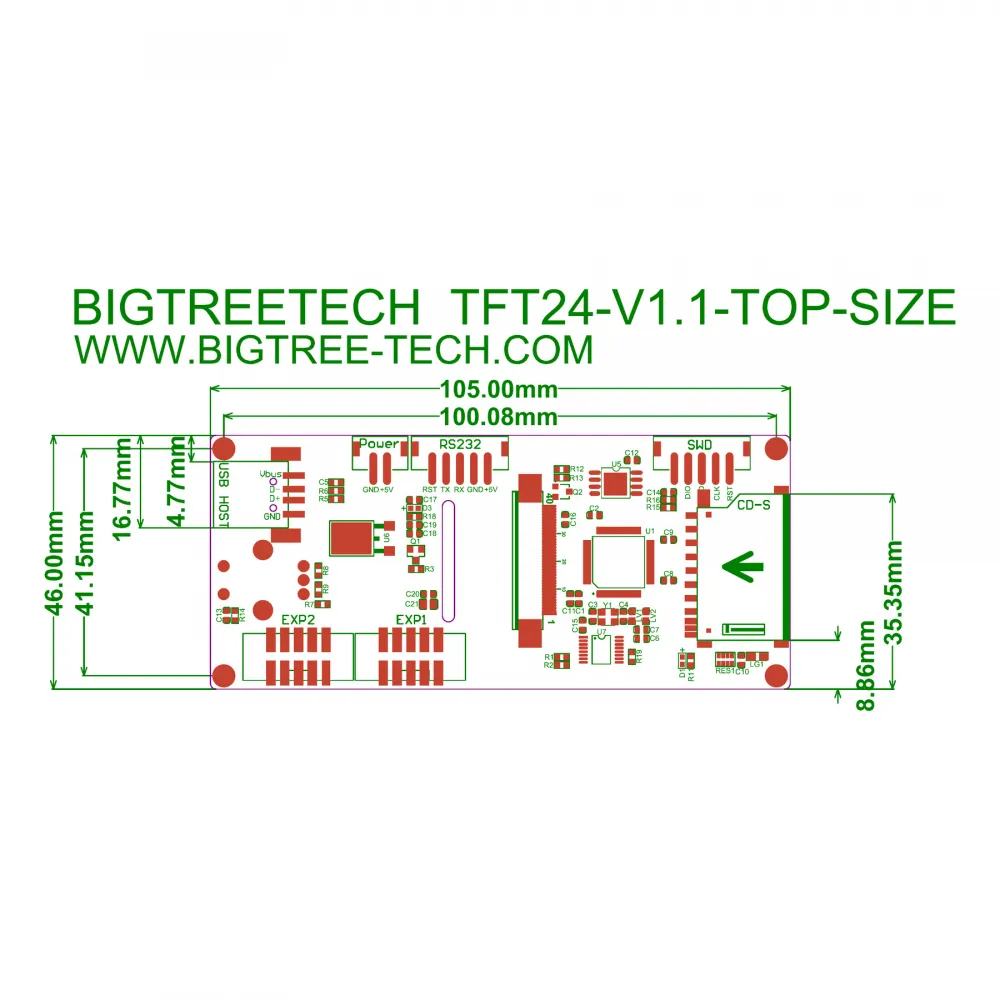
| Overall dimensions | 105 × 46 mm |
| Horizontal distance between end mounting holes | 100.08 mm centre to centre |
| Vertical mounting-hole distance | 41.15 mm centre to centre |
| Main interfaces | 5-pin UART, EXP1, EXP2, SD, USB host and SWD |
Pinout and connections
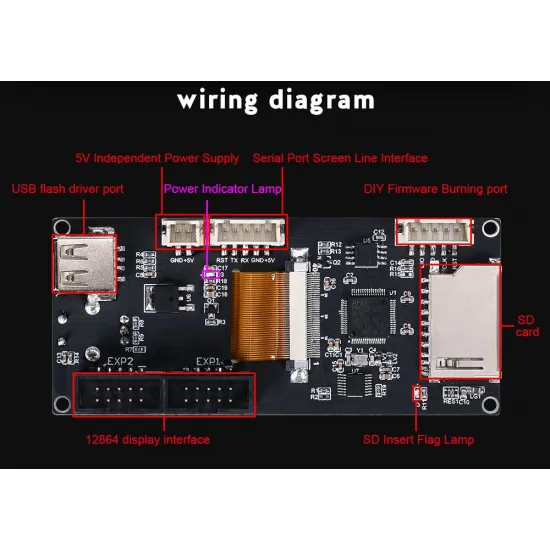
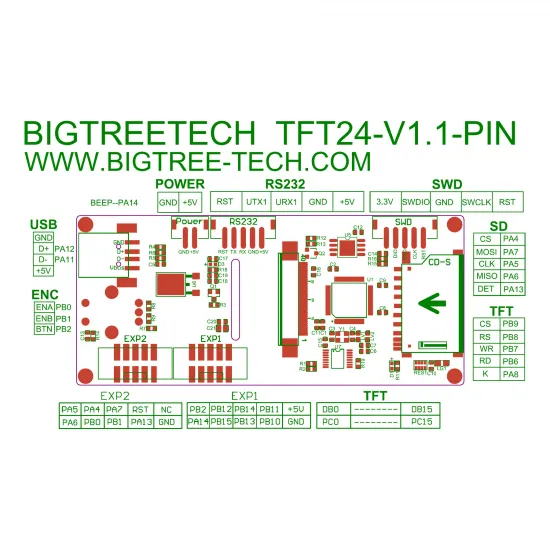
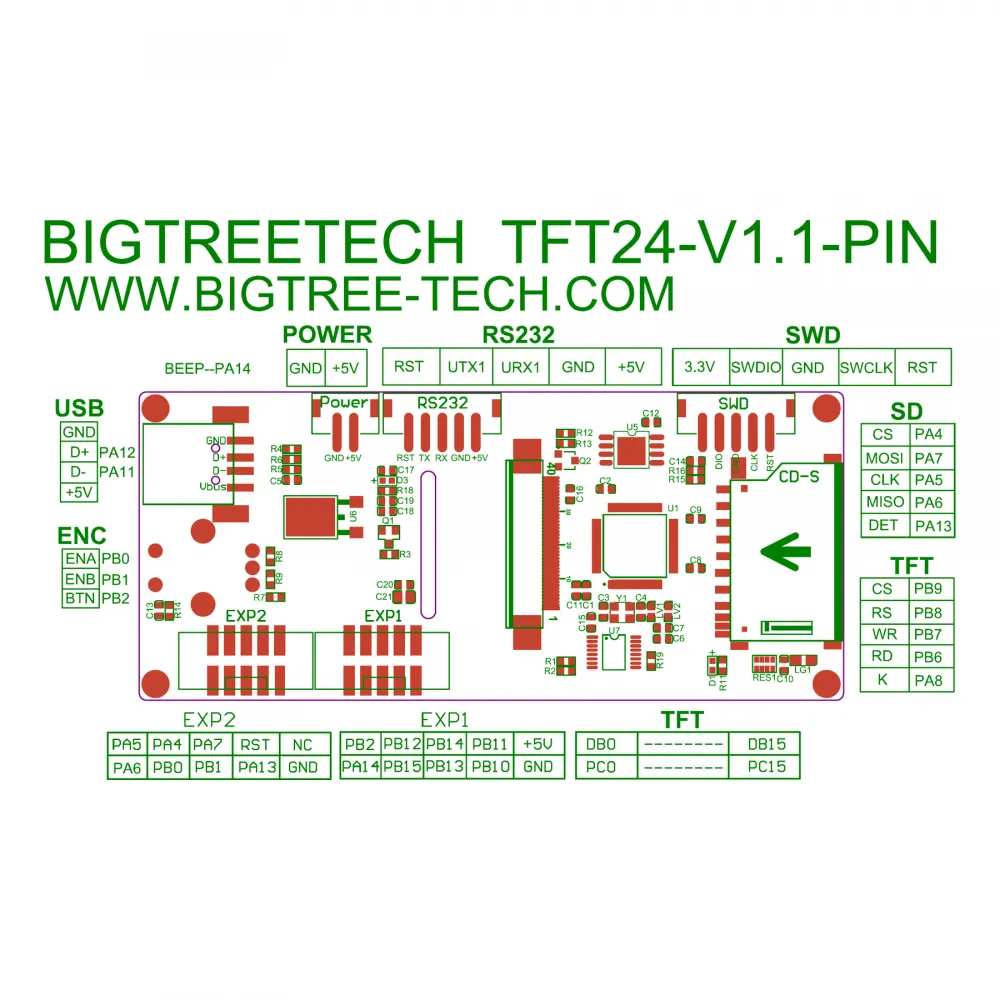
The five-pin serial connector is labelled RS232 on the board, but it carries the RST, TX, RX, GND and +5 V logic signals used by the TFT's UART link. Do not connect it to a conventional positive/negative-voltage RS-232 port. Always compare the display pinout with the controller pinout before applying power: connector order can vary, and TX must communicate with RX.
The board also provides a separate GND/+5 V power connector, EXP1 and EXP2, an SWD header, USB host and an SD card reader. EXP1 and EXP2 are not serial connectors: they carry the signals required for the TFT to emulate a display directly connected to the controller.
Touch Mode installation
- Completely power off the printer and disconnect USB power from the mainboard.
- Identify a compatible UART on the controller and check its pinout.
- Connect GND, +5 V, TX, RX and, where applicable, RST according to both pinouts.
- Enable the serial port assigned to the TFT in the printer firmware.
- Set the same baud rate on the mainboard and display.
- Power on and verify temperatures, movement, fans and limits before starting a print.
The TFT baud rate can be changed through Menu > Settings > Connection > S. Ports or with the serial_port parameter in config.ini. If No printer attached! is shown, first check power, common ground, TX/RX, the selected serial port and baud rate. Responsive touch menus only confirm that the TFT itself is powered.
Marlin configuration
For all current touchscreen firmware functions, BIGTREETECH specifies Marlin 2.1.1 or later as its reference. Basic communication may be possible with older configurations, but all menus, reports and dialogs should not be assumed to work.
General options listed by the official project include:
EEPROM_SETTINGSandBABYSTEPPING.AUTO_REPORT_TEMPERATURESandAUTO_REPORT_POSITION.EXTENDED_CAPABILITIES_REPORT,M115_GEOMETRY_REPORTandM114_DETAIL.REPORT_FAN_CHANGE.
Features such as mainboard SD printing, M600, dialogs, M73 and some bed-levelling tools require additional options. Enable only the functions appropriate for the printer's mechanics, available memory and intended workflow.
Marlin Mode with EXP1 and EXP2
On a controller with both EXP headers, connect EXP1 to EXP1 and EXP2 to EXP2. In Configuration.h, the only enabled display option should be:
#define REPRAP_DISCOUNT_FULL_GRAPHIC_SMART_CONTROLLERDisable other display controllers, especially CR10_STOCKDISPLAY. If the image is corrupted or the encoder does not respond, switch the machine off and check orientation, continuity, pin 1 and the correspondence of both cables.
E3-type boards with a single EXP connector
The TFT24 V1.1 has no EXP3 header. For an E3-type controller with one EXP connector, the current documentation specifies a Y-split cable: one 10-pin plug for the mainboard and two 10-pin plugs for the TFT's EXP1 and EXP2. In this setup, only CR10_STOCKDISPLAY should be enabled. This splitter is not shown as part of the product contents.
RepRapFirmware operation
BIGTREETECH's current official firmware includes specific RepRapFirmware support. The TFT configuration should start with config_rrf.ini, be edited and then saved to the card as config.ini.
The official guide gives the following example:
M575 P1 S2 B57600This command configures a serial port for the display, but the port number is not universal. It must match the actual controller, UART and wiring. Documented functions include temperature, movement and fan monitoring and control, print status, pause and in-print adjustment, macros and access to compatible storage media.
Is this a Klipper display?
This is not a KlipperScreen display. It does not connect over HDMI, DSI or SPI to a Raspberry Pi or other Linux host, and BIGTREETECH does not document Touch Mode as a native Klipper interface for this model. Particular 12864-emulation configurations may exist, but they depend on the controller, pinout and firmware support and are not a universal compatibility claim.
If you need a graphical interface running directly on a Klipper host, choose a display and connection supported by that system. If you prefer a compact LCD driven by the mainboard, consider the BIGTREETECH MINI12864 V2.0 after checking mounting, connectors and configuration.
Safe TFT firmware updates
The official project still supports the TFT24 V1.1, but it provides different builds for STM and GD variants. Identify the microcontroller or hardware designation on your unit before selecting a binary:
- STM variant: dedicated
BIGTREE_TFT24_V1.1...binary. - GD variant: dedicated
BIGTREE_GD_TFT24_V1.1...binary. - Fonts and icons:
TFT24/fontandTFT24/bmpfolders. - Configuration:
config.ini.
Use the master branch of the official BIGTREETECH firmware; the manufacturer marks the old develop and release-xx.27 branches as outdated. Its guide recommends an SD card up to 8 GB, formatted as FAT32, with the correct files in the root directory. Do not interrupt power or ignore update errors.
Package contents
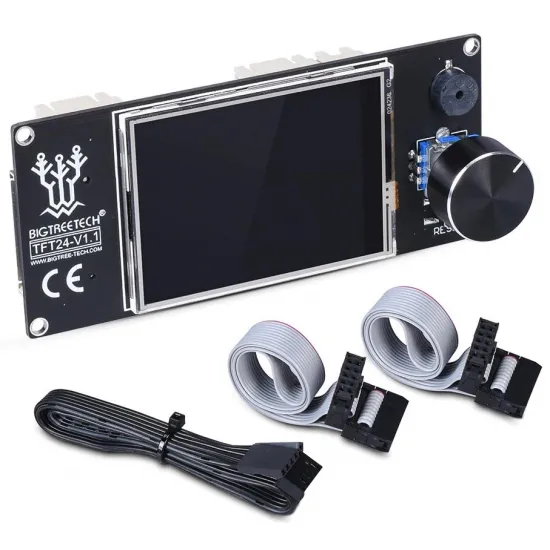
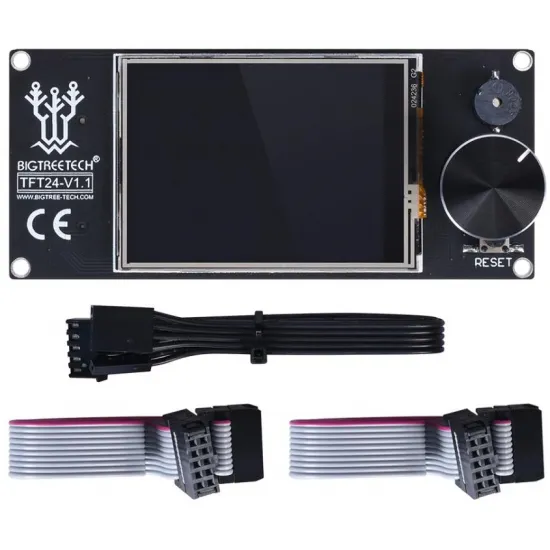
- 1 BIGTREETECH TFT24 V1.1 display.
- 1 five-pin serial cable.
- 2 ten-pin ribbon cables for EXP1 and EXP2.
SD card, USB flash drive, enclosure and Y-split cable are not included.
This product is for you if...
- You need a compact display with both a touch interface and a 12864 alternative.
- Your controller provides a compatible 5 V UART or properly documented EXP1 and EXP2 headers.
- You want to operate the printer without keeping a computer permanently connected.
- You can verify the pinout and configure the controller firmware.
This product is not for you if...
- You need an HDMI display or a KlipperScreen interface for a Linux host.
- You require plug-and-play installation without checking connectors, firmware or serial speed.
- Your board has only one E3-style EXP header and you do not have the required splitter.
- You prefer a larger display: consider the BIGTREETECH TFT35 V3.0 after checking its dimensions and connections.