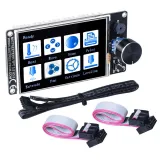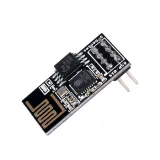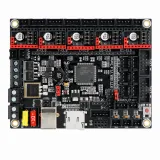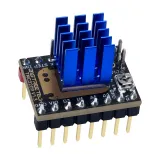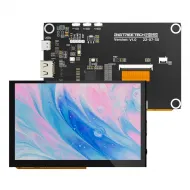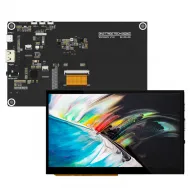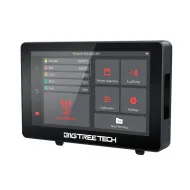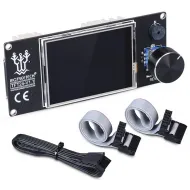


- Stock: 1
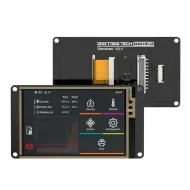
- Model: TFT35-V3.0

Model:

TFT24 V1.1

TFT35 V3.0

TFT43 V3.0

TFT50 V3.0
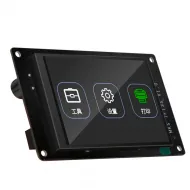
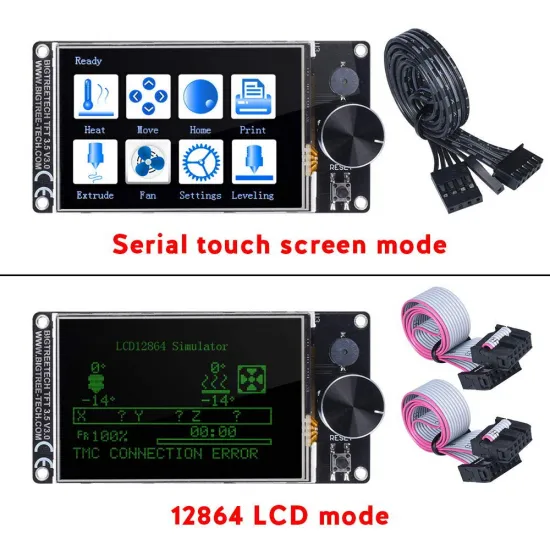
The BIGTREETECH TFT35 V3.0 combines two different ways of controlling a 3D printer in a 3.5-inch touchscreen: a standalone Touch Mode communicating over UART and a Marlin Mode that emulates a 12864 graphical LCD. When both interfaces are wired and configured, you can switch between the convenience of the touchscreen menu and the classic menu generated directly by the mainboard firmware.
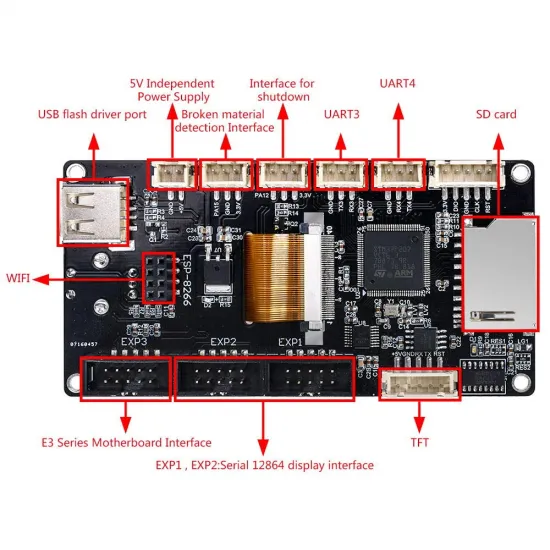
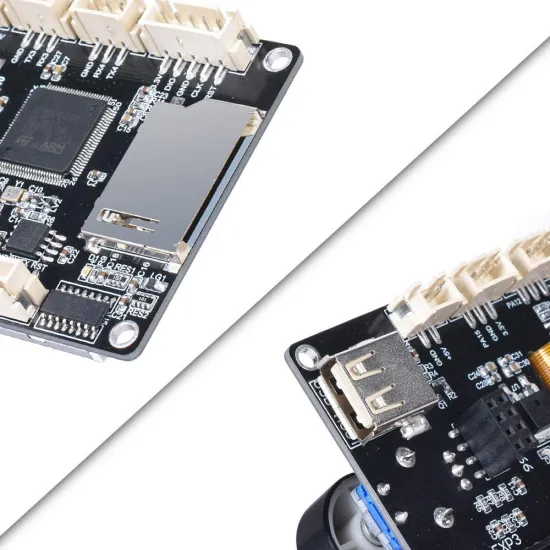
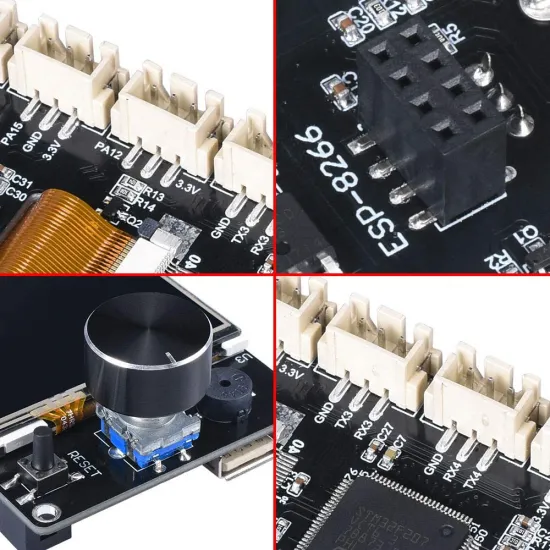
This is not a passive LCD or an HDMI screen for a computer: it has its own microcontroller and firmware. Touch Mode exchanges G-code commands and printer status with the controller; Marlin Mode uses the encoder and EXP connectors. The standard TFT35 V3.0 also provides EXP3 for E3-style mainboards with a single display connector, an SD reader, USB host and a socket for an external Wi-Fi module.
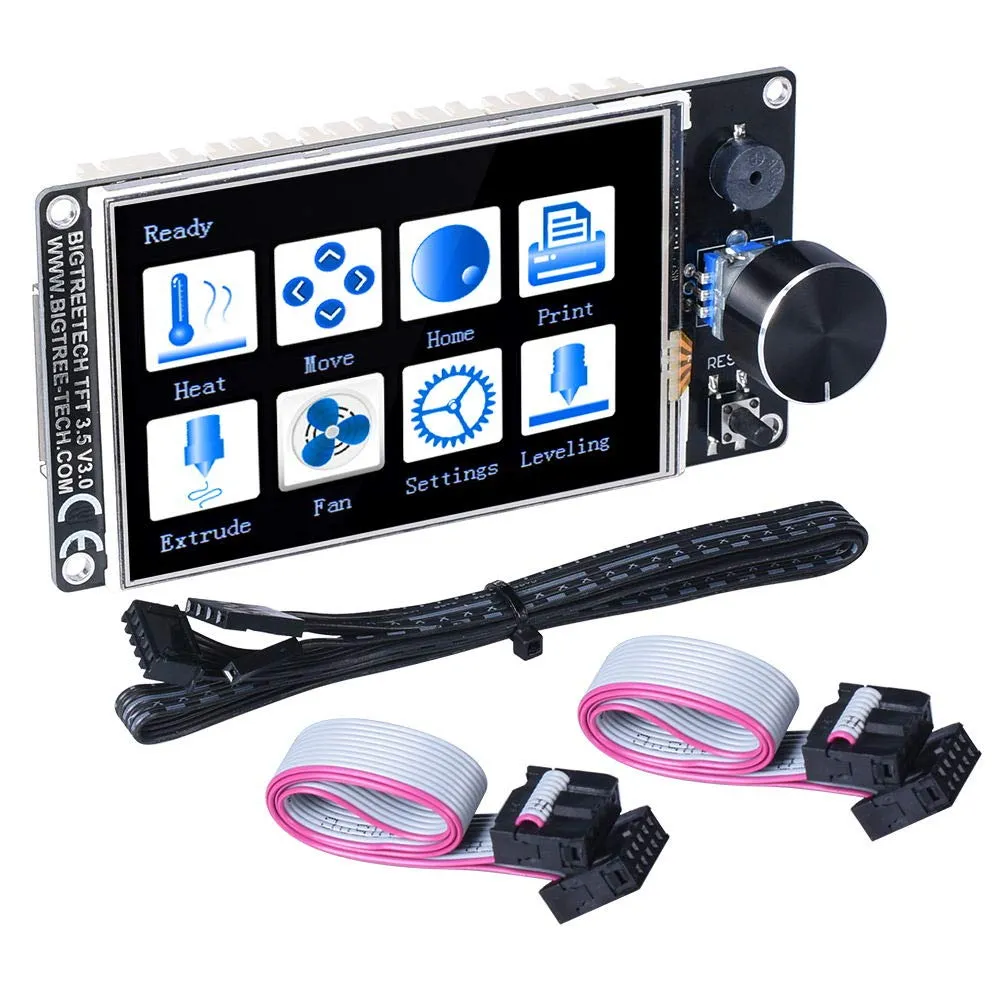
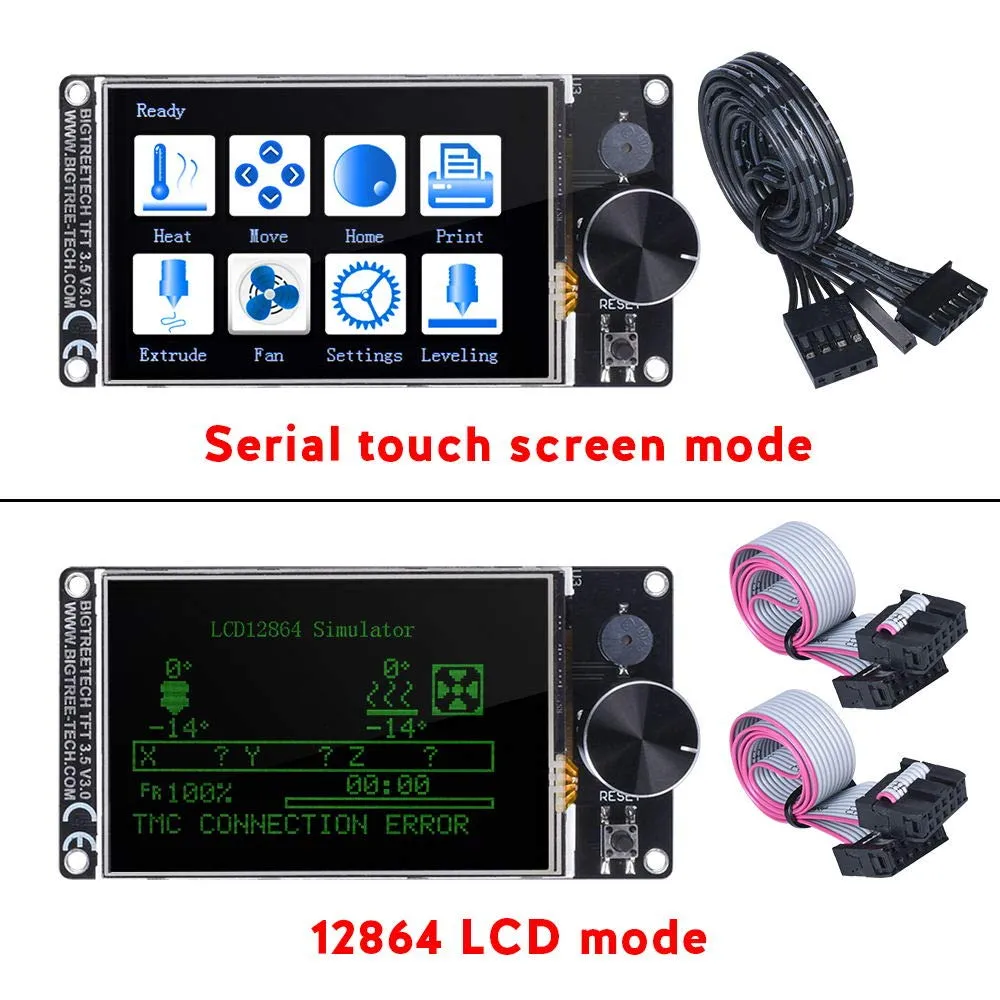
Touch Mode and Marlin Mode
| Mode | Connection | Operation |
|---|---|---|
| Touch Mode | 5-pin serial cable to a mainboard UART | Standalone touch interface that reads printer status and sends G-code commands. |
| Marlin Mode / 12864 LCD | EXP1 + EXP2, or EXP3 on E3-style boards | Menus generated by the controller firmware; operated with the encoder without touch input. |
The two modes use different connections. A powered display does not confirm communication with the mainboard. Touch Mode needs an enabled UART and matching serial speed on both devices; Marlin Mode needs the appropriate EXP wiring and display option in firmware.
With the current firmware, the mode selector can be opened by holding the touchscreen or encoder button for approximately 1.5 seconds, unless mode switching has been locked in the configuration.
Official video: switching between both modes
In this short video, BIGTREETECH demonstrates the TFT35 V3.0 switching between Touch Mode and 12864 LCD Mode. It is a visual demonstration of the dual interface, not a complete wiring or configuration guide. Icons and menus may differ when the display runs a newer firmware version.
Main features
- 3.5-inch colour touchscreen.
- 480 × 320-pixel resolution.
- 5 V DC logic supply.
- Touch Mode through a five-pin UART link.
- 12864 LCD emulation through EXP1 and EXP2.
- EXP3 for E3-style controllers with a compatible single display interface.
- Rotary encoder with push button, buzzer and reset button.
- SD card reader and USB host for functions supported by the TFT firmware.
- Socket for a compatible external Wi-Fi module.
- Dedicated FIL-DET and PS-ON connectors plus UART3, UART4 and SWD.
- Configurable firmware, icons, fonts, language, appearance and serial speed.
Specifications and dimensions
| Model | Standard BIGTREETECH TFT35 V3.0 |
|---|---|
| Diagonal | 3.5 inches |
| Resolution | 480 × 320 pixels |
| Input voltage | 5 V DC |
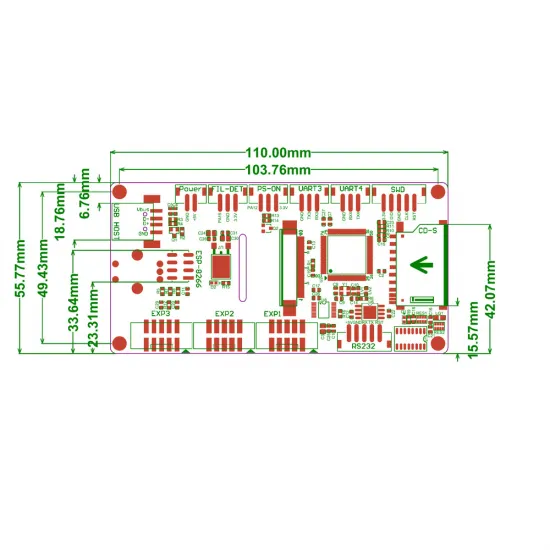
| PCB dimensions | 110 × 55.77 mm in the official drawing; the manual rounds this to 110 × 58 mm |
| Mounting pattern | 103.76 × 49.43 mm centre to centre |
| Main interfaces | TFT UART, EXP1, EXP2, EXP3, SD, USB host, ESP, FIL-DET, PS-ON, UART3, UART4 and SWD |
Before designing or printing an enclosure, also check encoder position, side access to the SD and USB ports and clearance for the rear connectors. Sharing a 3.5-inch diagonal does not mean another screen shares the same outline, holes or pinout.
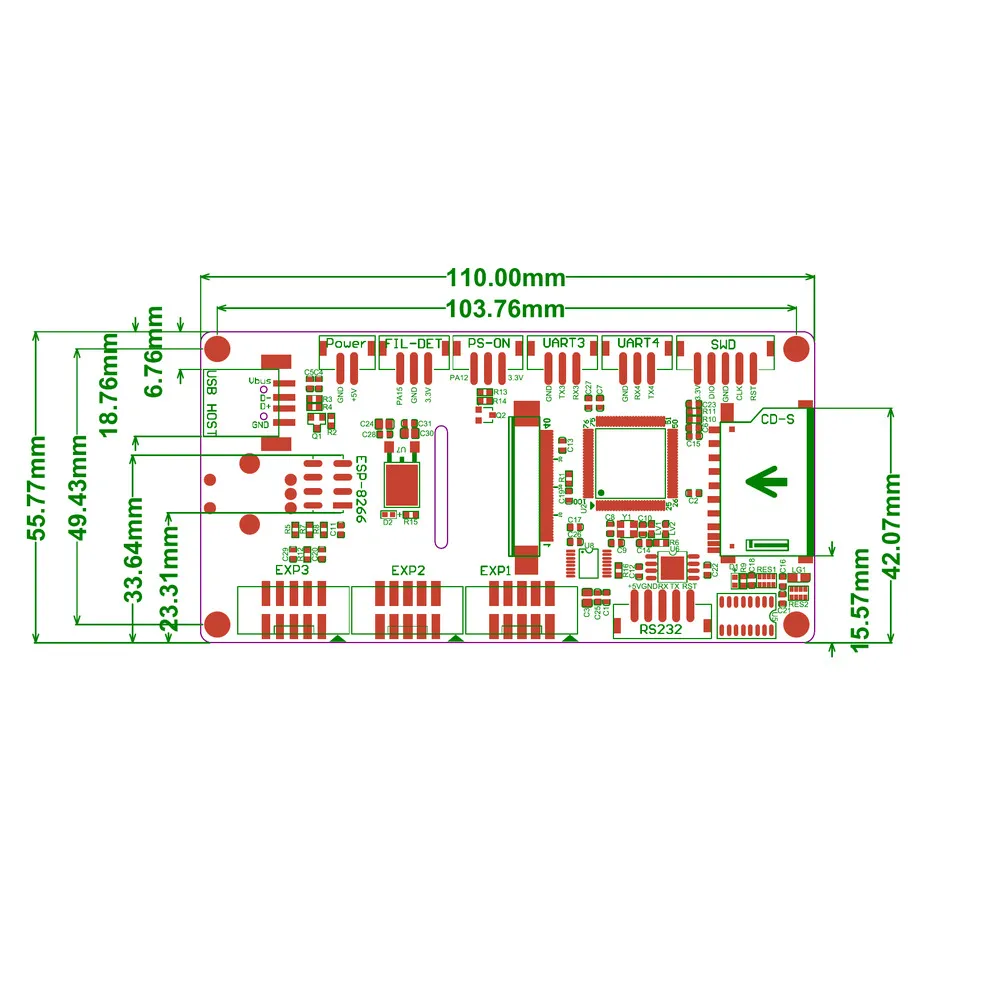
Pinout and connections
The five-pin connector marked RS232 uses the logical RST, RX, TX, GND and +5 V signals for the TFT UART link. It must not be connected to a conventional positive/negative-voltage RS-232 port. Always compare the display pinout with the mainboard documentation: connector shape does not guarantee matching signal order, and TX must communicate with RX.
EXP1 and EXP2 carry the 12864 LCD-emulation signals for boards with two display connectors. EXP3 provides the pin arrangement used by many E3-style controllers with one display output. These connectors are not interchangeable: incorrect wiring may hold the TFT in reset or result in a black screen.
FIL-DET and PS-ON support compatible filament-detection and controlled-shutdown expansions. Follow the current pinout and firmware rather than the silkscreen alone for these applications: the official code explicitly corrects the internal PS-ON assignment relative to an older PCB marking.
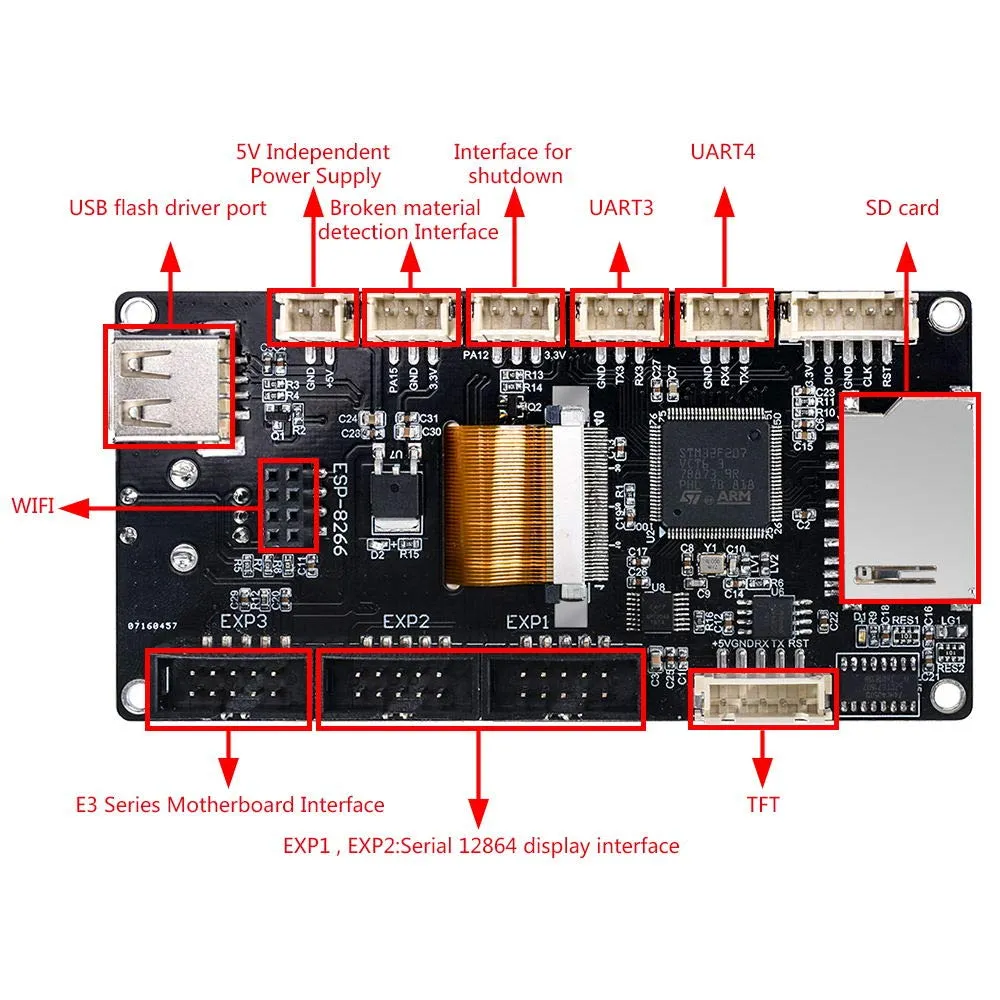
Touch Mode installation
- Switch the printer off completely and disconnect any USB lead that could still power the mainboard.
- Identify a compatible UART on the controller and consult its pinout.
- Connect GND, +5 V, TX, RX and, where required, RST according to the signals at both ends.
- Enable the serial port assigned to the TFT in the printer firmware.
- Set the same baudrate on the mainboard and display.
- Power on and verify temperatures, movement, fans and endstops before starting a print.
The TFT serial speed can be changed from Menu > Settings > Connection > S. Ports or with the serial_port parameter in config.ini. If No printer attached! appears, check power, common ground, TX/RX, the selected UART and baudrate. Touch menus can remain responsive even when the display is not communicating with the printer.
Marlin configuration
BIGTREETECH currently uses Marlin 2.1.1 or later as the baseline for all supported touchscreen features. Basic communication may be possible with an older configuration, but all menus, reports and dialogs should not be assumed to work.
General options identified by the official project include:
EEPROM_SETTINGSandBABYSTEPPING.AUTO_REPORT_TEMPERATURESandAUTO_REPORT_POSITION.EXTENDED_CAPABILITIES_REPORT,M115_GEOMETRY_REPORTandM114_DETAIL.REPORT_FAN_CHANGE.
Printing from mainboard media, dialogs, M600, M73 and some levelling tools require additional options. Enable only features appropriate for the printer mechanics, available memory and workflow.
Mainboards with EXP1 and EXP2
Connect EXP1 to EXP1 and EXP2 to EXP2. In Configuration.h, enable only:
#define REPRAP_DISCOUNT_FULL_GRAPHIC_SMART_CONTROLLERDisable other display controllers, especially CR10_STOCKDISPLAY. If the image is corrupted or the encoder does not respond, switch the machine off and verify orientation, continuity, pin 1 and cable correspondence.
E3-style mainboards with one EXP connector
Connect the mainboard display port to EXP3 on the TFT35 V3.0 using a compatible cable. In this topology, enable only:
#define CR10_STOCKDISPLAYDo not connect a conventional mainboard EXP1 to EXP3 merely because the plug fits. The assignments are different, and BIGTREETECH documents that incorrect wiring may hold the TFT in reset. If you switch to Marlin Mode after starting in Touch Mode and the screen does not refresh, press or turn the encoder before changing the wiring.
Wi-Fi expansion
The TFT35 V3.0 includes a socket for an external Wi-Fi module; wireless connectivity is not built into the display, and a module is not shown among the included accessories. The official guide uses compatible ESP8266/ESP32 modules programmed with ESP3D.
Before purchasing or connecting a module, verify its format, pinout, supply and firmware. An ESP8266-based product is not automatically a direct plug-in match for this TFT. Network configuration, security and remote access belong to the module and ESP3D, not to 12864 LCD Mode.
RepRapFirmware
The current official firmware includes dedicated RepRapFirmware support. Start with config_rrf.ini, edit it and save it on the card as config.ini.
The official guide provides this example:
M575 P1 S2 B57600The port number is not universal. It must be adapted to the actual controller, UART and wiring. Documented integration includes temperatures, movement, fans, print status, pause, live adjustment, macros and access to compatible storage media.
Is this a Klipper display?
This is not a KlipperScreen display. It does not connect to a Raspberry Pi or another Linux host over HDMI, DSI or SPI, and BIGTREETECH does not provide a guide that would justify claiming native Klipper Touch Mode support for this model. Particular serial or emulation configurations may exist, but they depend on the exact board, pinout and firmware and are not universal compatibility.
If you need a graphical interface rendered by the Klipper host, choose a display and connection supported by that system. If you prefer an LCD driven directly by the controller, consider the BIGTREETECH MINI12864 V2.0 after checking its connectors and configuration.
Safe firmware update
The current unified repository provides different binaries for the physical model and microcontroller family. Identify the unit and use the exact matching build:
- Standard TFT35 V3.0 with STM:
BIGTREE_TFT35_V3.0.... - Standard TFT35 V3.0 with GD:
BIGTREE_GD_TFT35_V3.0.... - Do not use
E3_V3.0orB1_V3.0binaries on this standard board. - Fonts and icons:
TFT35/fontandTFT35/bmpfolders. - Configuration:
config.ini.
Use the master branch of the official BIGTREETECH firmware; the manufacturer marks the old develop and release-xx.27 branches as obsolete. The guide recommends an SD card no larger than 8 GB, FAT32 formatting and the correct files in the root. Firmware updates require SD; on supported models, icons, fonts and configuration can also be loaded over USB.
Package contents
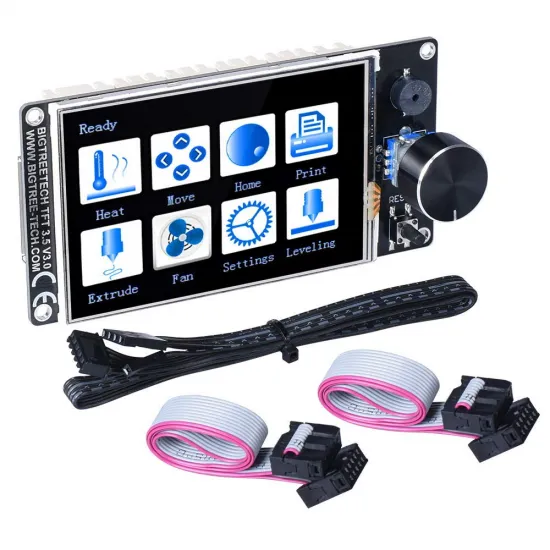
- 1 standard BIGTREETECH TFT35 V3.0 display.
- 1 five-pin serial cable.
- 2 ten-pin ribbon cables for EXP1 and EXP2.
SD card, USB drive, Wi-Fi module, enclosure and other expansion accessories are not included.
This product is for you if...
- You want a 3.5-inch display with both touchscreen and 12864 LCD interfaces.
- Your board provides a compatible UART, EXP1+EXP2 or a documented E3-style EXP connection.
- You want to operate the printer without leaving a computer permanently connected.
- You can verify pinouts and adjust the controller firmware.
- You want the option of adding a compatible external Wi-Fi module later.
This product is not for you if...
- You need an HDMI display or KlipperScreen interface for a Linux host.
- You need built-in Wi-Fi without installing and configuring an external module.
- You want a direct mechanical replacement without checking dimensions, holes and connectors.
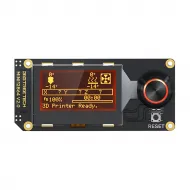
- You prefer a more compact solution: consider the BIGTREETECH TFT24 V1.1, noting that its mounting and EXP connectivity are not identical.